
Command palette
Ctrl+K (⌘+K on macOS), or the search button in the toolbar, opens the command palette: one field over tabs, actions, units and transactions.
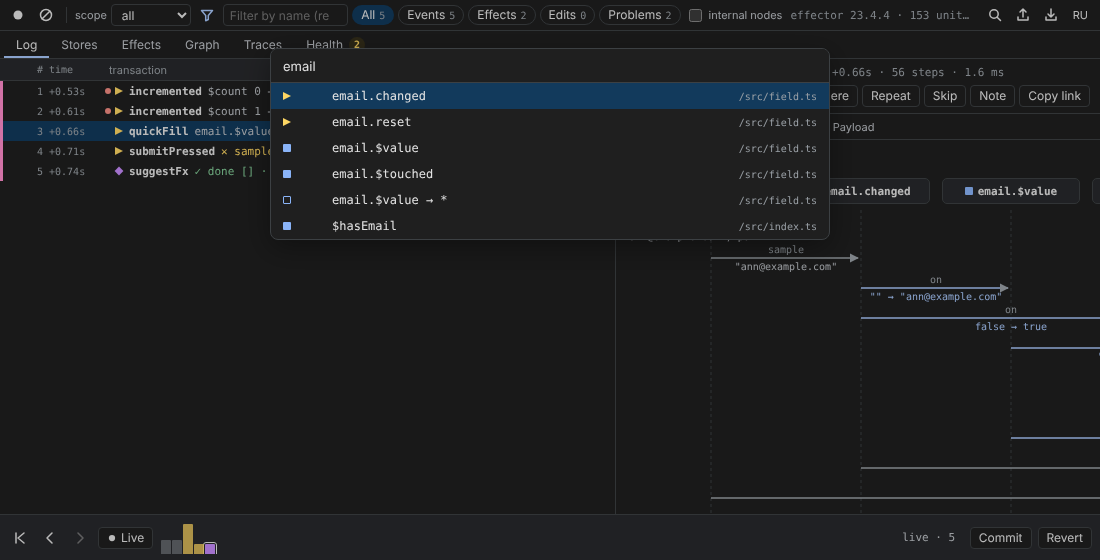
Type a few letters (“Type a command, a unit or #transaction…”), move with ↑ / ↓, run with Enter, close with Esc.
| Group | Items | Result |
|---|---|---|
| Tab | Log, Stores, Effects, Graph, Traces, Health (with their keys 1–6) | switches the tab |
| Action | Start / pause recording · Clear log · Export trace · Import trace · Commit · Revert · Back to present · Block / allow clicks in the past · Check derived stores · Switch language | runs it; shortcuts are shown next to the name |
| Unit | every event, store and effect, with its file | a store opens in Stores, other units in Graph |
| Transaction | the last 300 transactions, #12 greetingShown | opens it in the Log |
Keyboard shortcuts
| Keys | Action |
|---|---|
| Ctrl+K | command palette |
| 1 … 6 | Log, Stores, Effects, Graph, Traces, Health |
| Ctrl+[ / Ctrl+] | one transaction back / forward |
| Esc | back to the present (also in the page); closes the palette and saved filters |
| Ctrl+L | clear the log |
| Ctrl+S | export a trace |
| ↑ / ↓, Enter | in the Log: select a row, jump to it |
Ctrl and ⌘ are interchangeable. Number keys work when no input field is focused.
File links
Wherever a unit has a source location — the step tree, Stores, Health — the file name is a link. In the extension it opens the DevTools Sources panel at that line. When the file cannot be resolved to a script of the page (and in the standalone app), the path file:line is copied to the clipboard instead: “Copied src/model.ts:42: open it in your editor”.